
Updated for EOS 6D & EOS 70D tethered to Lightroom 5.3

Tethered shooting to Lightroom
EOS 6D supports tethered shooting using Canon’s EOS Utility software, and it’s a simple case to set up the tethered shooting over a WiFi link thanks to the camera’s built-in WiFi feature. Currently Lightroom 4.3 doesn’t support tethering of the EOS 6D via USB or WiFi connections, so you have to use a combination of EOS Utility and Lightroom Auto Import to achieve the desired result.
Steps to tether EOS 6D in to Lightroom
- Configure the WiFi on the EOS 6D for your network environment
- Set EOS Utility to start up in Remote Shooting mode
- Configure the folder that the images from the EOS 6D are stored in
- Configure Lightroom to Auto Import from the folder created in the step above
Configure the EOS 6D WiFi
This is the simplest WiFi set-up of any of the Canon WiFi transmitters I have used so far. Simply follow the menu on the camera to configure the EOS Utility mode. It’s easier if you are using a WiFi router / access point since you don’t need to preset various network settings and ip addresses.
If you want to shoot tethered to your computer out on location then you will need to create an ad-hoc (point to point) network on the computer and manually set the ip addresses for the camera and computer.
Set EOS Utility to automatically start up in remote shooting mode
I previously wrote an article explaining how to achieve this with a Mac for USB connections, but for WiFi you also need to make sure you have the WFT pairing software set to start when your computer starts up. The setting is in EOS Utility preferences under the basic settings.

Register WFT pairing software in EOS Utility
Configure the folder for EOS Utility to save the pictures
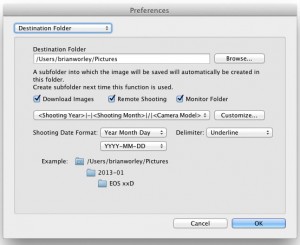
/Pictures/2013-01/EOS 6D/For this kind of tethered shooting I would configure EOS Utility to simply store the images in a folder for the camera. This then ensures that I don’t need to change the Lightroom settings each month 🙂
/Pictures/AutoImport/EOS 6D/In the Destination Folder section of the EOS Utility preferences I configure a custom folder structure as shown below.

Configure Lightroom to Auto Import from a folder
From the Lightroom File menu choose Auto Import


Not just for EOS 6D…
Of course when new EOS cameras first come on the market there is often a time when third party software is not fully supporting them. This technique of using the manufacturers own tethering software with Lightroom works in such cases. In the case of EOS Utility there’s a lot more control than is normally available from the simple Lightroom tethering interface and so I tend to use this method to tether from all my EOS cameras in to Lightroom. Usually the limiting factor is the support for the RAW images in Lightroom / ACR. EOS Utility can also be set to only transfer JPEG images from the camera when shooting RAW and JPEG to the card. This makes for fast transfers over WiFi and also speeds up Lightroom’s ability to show a preview.
Hi,
thanks for this..very hard to a decent tutorial on setting up wifi with eos utility.
I had it set up fine for my 5d2 & 5d3 with mac 10.8.3 then..just stopped working. I followed your instructions but just wont work in LR4!
When i use the usb cable works fine…also the eos wifi works fine on its own…but the eos utility wont work with LR4 nor will LR recognise the camera (but does fine with usb).
Files transfer to mac, in LR4 in enable auto import but nothing…am not sure if its a folder monitoring issue or LR4-eos issue…but i assume it connection issue as the camera tool bar does not open in LR4 nor does it rocognize that the camera is connected!
have tried everything…any suggestions??
thanks,
esam.
I’m a beginner, I saw WiFiCamTether from jamlogics.com, wireless tethering that seems it can do some of those things you mentioned above, anybody ever used it?
I’ve not seen the specific device you mention but I have seen the CamRanger device that does similar things. I’m hoping to test the CamRanger out soon.
See more here http://www.camranger.com
Brian / p4pictures
Hello!
What kind of Wi-Fi speed are we talking about? I just simply wonder if with the use of WI-Fi what would be a burst rate during continuous shooting, not video. I am thinking if I should get a tablet with WI-Fi per to per connection or just get a laptop and use a USB wire.
Have you had any problems of this kind?
Thank you,
Alec.
Alec,
The EOS 6D has a WiFi adapter capable of wireless N but the actual speed will depend on many factors, distance, other wifi kit, indoors / out etc. Sending over JPG images from the camera via WiFi is pretty quick – I tend to set the camera to shoot RAW + small/medium JPEGs and then with EOS Utility only send the JPEGs for speed.
If you want to use say an iPad then again it’s best to keep the file sizes small – shooting a RAW + small JPEG seems at times to make the previews on the iPad come up faster – though it’s a bit subjective and may be wishful thinking 🙂
My EOS 6D was a loaner and it’s gone back now…
Brian / p4pictures
Can i know how to shoot tethered using EOS 6D?I keep on trying to connect but it is not works,i wonder how now?
Just wanted to stop by and say thanks! I found this article via google search and it got me up and running with tethered shooting with my new 6D and Lightroom 4.4. Thanks!
Hi Brian,
I just got my 6D and I love it. Quick question. If I shoot in both Raw and small jpeg they upload to Lightroom much faster. However, how do I merge the metadata? If I import the RAW files will it automatically attach?
Hi John,
If you are only sending the JPEG files to Lightroom then you can import the RAWs later. However synching metadata is either a manual file by file process or you will need some kind of plug-in for Lightroom.
Some plug-in options are:
Syncomatic http://www.beardsworth.co.uk/lightroom/syncomatic/
RawPlusJpeg http://www.robcole.com/Rob/ProductsAndServices/RawPlusJpegLrPlugin/
RelativeAntics http://robcole.com/Rob/ProductsAndServices/RelativeAnticsLrPlugin/
Brian / p4pictures
Thanks Brian, I just did my first studio shoot (my newborn son in our garage). I shot in large jpeg and, RAW with an adhoc network. I only imported the jpegs.
I need to test to see how fast the jpeg transfers vs the RAW file.
I was very happy with the ability to review, then correct and, reshoot right out of Lightroom. I had been using a WiFi card in my T4i and, there’s just no comparison. As a matter of fact I think the WiFi transfers even better than cabled tethering.
For now I think just rating my jpeg photos and only importing the RAW files I want is the way to go. One day I’m sure we’ll be able to WiFi tether straight into Lightroom. Thanks for the great workaround.
Tether capture with the 6D is now supported in Lightroom v5.2 and higher. See here:http://helpx.adobe.com/lightroom/kb/tethered-camera-support-lightroom-4.html
The EOS 6D tethering support is for USB cable connected cameras only unfortunately.
If you want to tether the EOS 6D to Lightroom using WiFi then you need to follow the steps in this post.
In this post http://www.p4pictures.com/2014/01/eos-70d-6d-wifi-tethered-shooting-adobe-lightroom-5/ I was able to tether an EOS 70D using WiFi too.
Brian / p4pictures
Hi Brian – thanks for the tutorial! I have followed the steps with my Canon 6D, but after it recognizes the first photo (that shows up on my computer screen), I keep getting a message saying that “an internal error has occured” and EOS Utility shuts down.
I can’t for the life of me figure out the problem. The computer and camera are clearly communicating over wifi since the first photo sends correctly. But then without fail, EOS utility always shuts down immediately after.
Any tips you could offer would be awesome!! Thanks!
Hi Ali,
What operating system are you using, and are you connected via a router or just direct between the computer and camera? Secondly did you update the EOS Utility to the latest version, Canon keeps on putting out new versions and they often fix something for existing cameras as part of the release.
I just had a colleague have trouble with EOS utility on Mac OS 10.9 and found they were three versions behind the current one. Installing the latest version fixed the problems instantly.
Brian / p4pictures
Unfortunately the directions fall apart at step 1.
In my EOS Utility (The latest 2.14) I don’t see an option for the checkbox “Register WTF Pairing…”
Detail instructions for pairing through the camera’s menu system are much needed.
The user interface uses all sorts or words that mean nothing to even the tech savy person.
Any help appreciated.
Hi Matt,
Yes I noticed that EOS Utility 2.14 changed things and then yesterday also EOS Utility 3.0 (for the EOS 5D Mark III, EOS 6D, EOS-1D X and EOS-1D C) arrived too. Time for some more posts and video tutorials too.
Brian / p4pictures
Here you go Matt
http://www.p4pictures.com/2014/06/wifi-tethering-eos-70d-using-eos-utility-2-14/
Brian / p4pictures
Hi Brian,
I’m having the same issue as Ali, where EOS Utility shuts down after each photo. I’m running OSX Lion (10.7.5), have the latest drivers and firmware installed for Utility and Canon 6D respectively, and am connected using ad-hoc, since structural (I think that’s what it was called) was having issues.
Any suggestions?
Hi Brian,
I am looking to tether my Canon 6D using wifi to my Windows 8.1 machine and into Lightroom 4.4 Is the process the same, or even possible? Thanks for any advice!
Hi Chris,
I would expect the process is the same. You need to make sure that the EOS Utility is working and the camera sending the files to a folder on the Windows machine. Then do the Lightroom configuration to auto import from the folder.
When I originally wrote the post it was fine using Lightroom 4.3 and 4.4 only added a few updates.
Let me know how you get on…
Brian / p4pictures
Hi Brian,
I can get the wifi link to work with no problem but now my hotshoe doesn’t seem to work. I’ve tried using a speedlite and my cyber commander as the transmitter and can’t get the lights to flash at all. Any ideas? I’m using the 6d.
Hi Justin,
Are you using Live View by any chance? If you use live view it might be the issue.
Set the “Silent LV shoot” option in the menus to Disable instead of Mode 1 or Mode 2. You will find this in the second Live View shooting menu, the last of the red tabbed menus.
Brian / p4pictures
Hi Brian
Awesome, thank you so much for sharing this information truly appreciated. I will let you know how i get on. Have a great weekend.
Kindly Simon